-
Step 1: Pick the number
Use a number that can receive an SMS or a voice call for the verification code. It should not be active in the WhatsApp or WhatsApp Business app on a phone: a number lives either in an app or on the WhatsApp Business Platform.
Good to know: Moving a number off the WhatsApp app deletes its chat history on that phone. Many businesses use a new SIM or a landline (voice-call verification) for the assistant and keep their old number for staff.
-
Step 2: Click Connect WhatsApp
Go to Connections, then WhatsApp & Instagram, and click Connect WhatsApp. A Meta window opens: log in with the Facebook account that manages your business, choose or create your business portfolio and WhatsApp Business account, add the number, enter the code Meta sends, and set the display name customers will see.
When the window closes, Nomisly registers the number, subscribes it to messages and stores the access token encrypted - there is nothing to copy or paste.
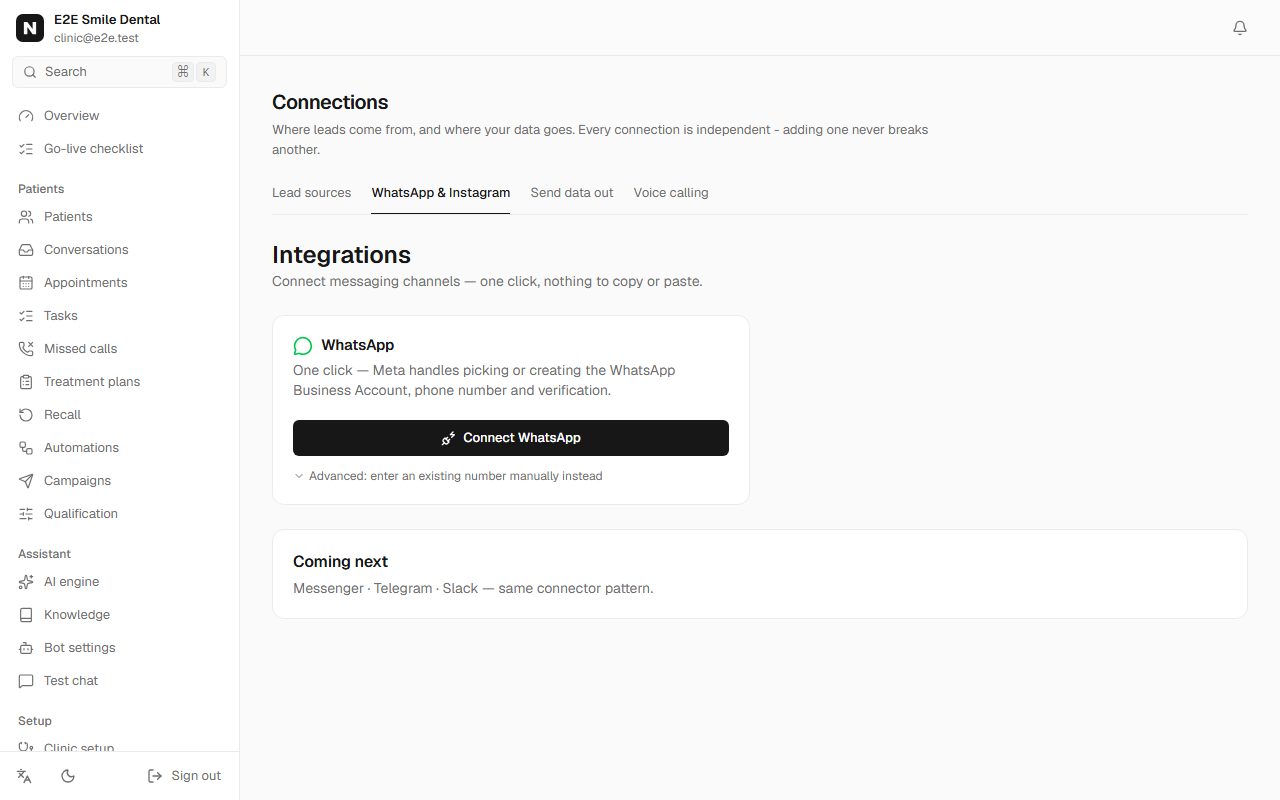
Connections page, WhatsApp & Instagram tab, with the Connect WhatsApp button You should see: The card shows "Number configured" and Check connection reports the number as connected.
-
Step 3: Send the first message from your own phone
From your personal WhatsApp, send "Hi" to the business number. The assistant answers in seconds and the chat appears in Conversations (Inbox), where your team can read along or take over.
You should see: The go-live checklist ticks "Send a test WhatsApp message".
-
Step 4: Testing with Meta's free test number (optional)
Before connecting a real number you can test with the free test number Meta gives every developer app (developers.facebook.com, your app, WhatsApp, API Setup). It is free and works for real messages, with limits:
- It can only message up to 5 phone numbers that you add and verify under API Setup ("To" > Manage phone number list).
- The temporary access token on that page expires after 24 hours; for longer tests create a System User token in Meta Business settings.
- Paste the Phone number ID, the token and the WhatsApp Business account ID under Connect WhatsApp > Advanced: enter an existing number manually.
- Your Meta app's webhook must point to https://app.nomisly.com/connectors/whatsapp/webhook with the fields messages and message_template_status_update subscribed.
Good to know: The test number is for trying things yourself. Real customers can't reach it - connect your own number before going live.
-
Step 5: Know the 24-hour rule and get templates approved
When a customer messages you, you can reply freely for 24 hours. After that (a reminder tomorrow, a recall in six months) WhatsApp only delivers templates that Meta has approved. Go to Automations, WhatsApp templates, tick the ready-made ones and click Create and send for approval. Approval usually takes minutes, sometimes up to a day, and the status updates in the app by itself.
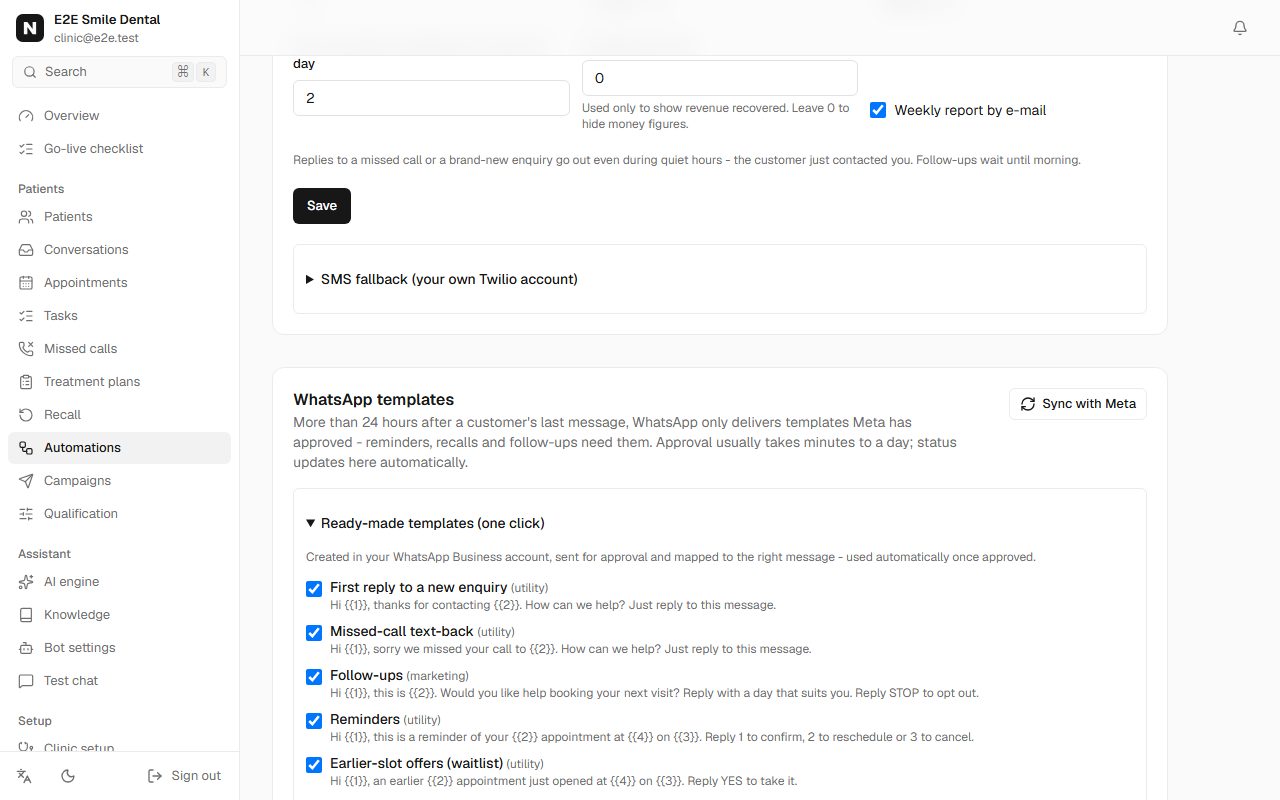
WhatsApp templates card with ready-made templates for first reply, missed call, follow-ups, reminders and waitlist offers You should see: Templates show "Waiting for Meta", then "Approved". The checklist ticks "Approved WhatsApp templates".
-
Step 6: Turn on the calendar inside WhatsApp (optional)
In Connections, under the connected number, Calendar inside WhatsApp > Turn on. When a patient taps "Another date", a calendar form opens inside WhatsApp: pick a day (closed days are greyed out), see the free times, book. It needs this server on a public https address, because Meta calls it while the form is open. Meta publishes forms only for verified businesses: until then it shows Draft (testing) and works for your tests; after verification click Publish now.
- Patients can also just type or speak: "kal shaam ko", "next Friday morning", a voice note - in English, Hindi, Punjabi or Hinglish.
- Without the form, "Another date" sends a private link to your booking page for that chat.
-
Step 7: Verify your business to raise the limit
Until Meta verifies your business, you can start conversations with up to 250 different customers in 24 hours (replies to customers who wrote first don't count). In Meta Business settings, Security centre, start business verification with your registration documents. Limits then rise automatically as you send good-quality messages.
Good to know: Meta bills WhatsApp per delivered message. Since 1 October 2026 that includes replies: the first 1,000 replies per number each month are free, then a per-message rate applies; templates are charged by category (marketing costs more than utility). Your WhatsApp Business account needs a payment method in Meta Business settings or Meta stops delivering. Rates depend on the customer's country - check Meta's current pricing page.
Frequently asked questions
Can I keep using the WhatsApp Business app on the same number?
Not with Nomisly today. A number connected here lives on the WhatsApp Business Platform; use a separate number for the assistant, or move your number over (its app chat history stays on the old phone only).
Why did my reminder not arrive?
Most often: the customer's last message is older than 24 hours and no approved reminder template is set. Open the lead's timeline - every message shows sent, delivered, read or the exact reason it was not sent.
A template was rejected. What now?
The reason Meta gave is shown next to it. Rewrite the wording (keep reminders purely informational; offers belong in marketing) and resubmit.