-
Step 1: Collect what customers ask about
The best knowledge is the answers your front desk gives every day. One clear document beats ten scattered ones.
- Prices and packages (clinics: services and prices already come from Appointments - no need to repeat them).
- Location, parking, opening hours on holidays, payment methods and insurance or EMI options.
- Policies: cancellation, refunds, documents to bring.
- Your 20 most common questions with the exact answers you'd give.
-
Step 2: Upload in Knowledge
Open Knowledge and click Upload document. Each file is read, split into passages and made searchable; the status turns to ready in a few seconds.
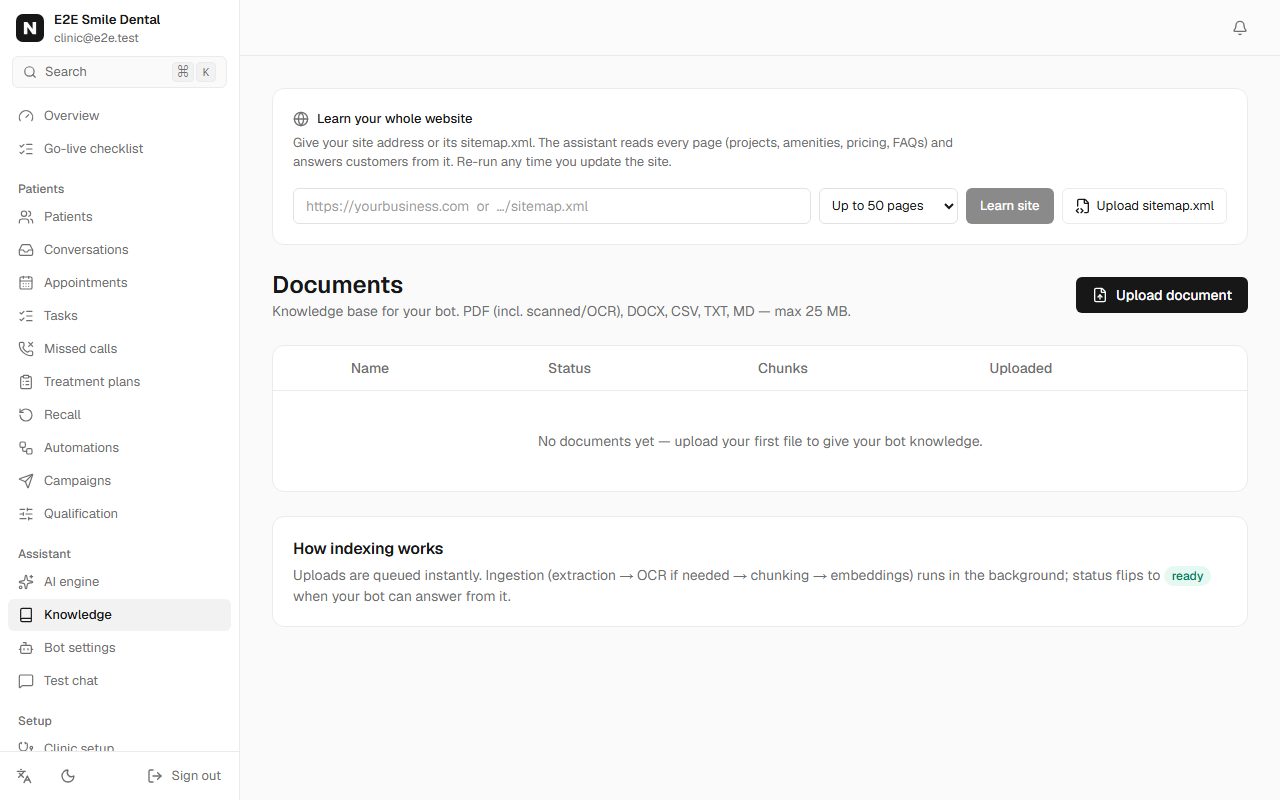
Knowledge page with uploaded documents and their status You should see: The document shows status ready, and the checklist ticks "Add your knowledge".
-
Step 3: Test the answers
Open Test chat and ask questions from your document in your customers' words. If an answer is wrong, fix the document (not the chat): delete the old version in Knowledge and upload the corrected one.
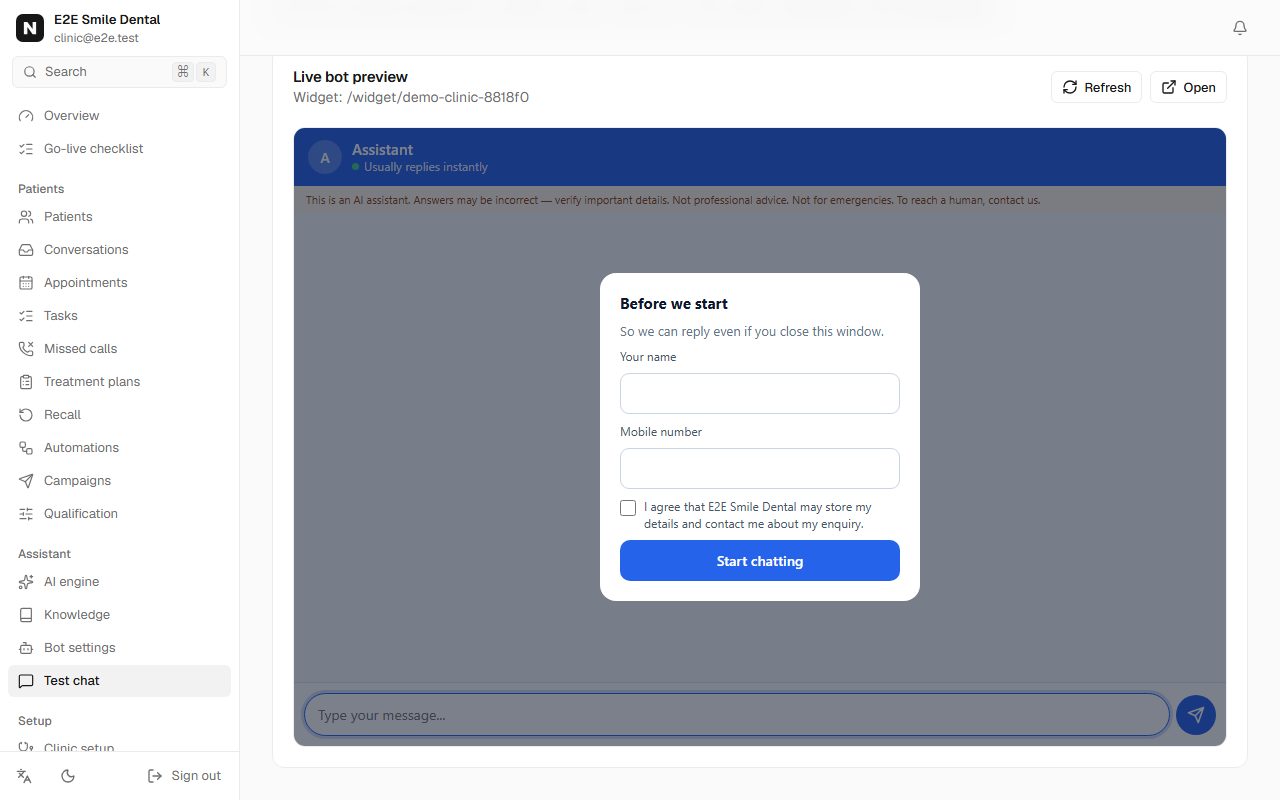
Test chat with the live assistant preview Good to know: The assistant can still be wrong; every chat shows that it is an AI assistant, and medical, legal or financial questions are handed to your team instead of answered.
Frequently asked questions
Which file types work?
PDF, Word (.docx), plain text, Markdown and CSV. Scanned PDFs are read with text recognition, which can misread small print - a text PDF or Word file is more reliable.
Can it read my website?
Copy the important pages into a document and upload it. That way you control exactly what the assistant says.
Next guide
Add the chat to your website