-
Step 1: Start the free trial
Open the sign-up page, enter your business name, e-mail and a password, and choose your business type. The trial runs for 15 days with every feature of the plan; no card is needed to start.
Your business type matters: it decides the questions the assistant asks, the words it uses (patients and doctors for a clinic, buyers and agents for a brokerage) and which screens you see.
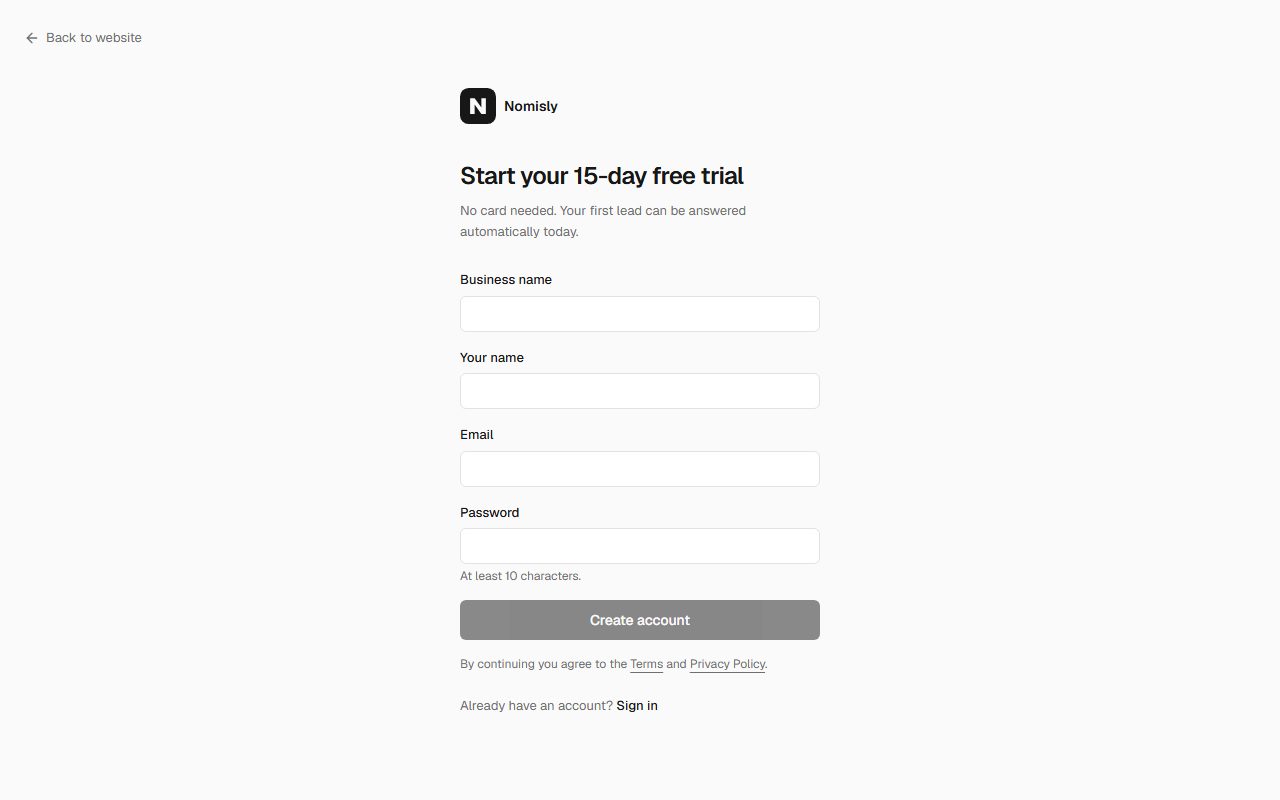
Nomisly sign-up form with business name, e-mail, password and business type set to dental clinic You should see: You land in your dashboard, signed in, with "Go-live checklist" in the menu.
-
Step 2: Open the go-live checklist
The checklist lists every step for your business type. Each tick comes from your real data: a step is only done when, for example, a doctor really has working hours saved. Nothing to tick by hand.
Every step has two links: "Do it" opens the right screen in the app, and "Show me how" opens the matching illustrated guide on this site.
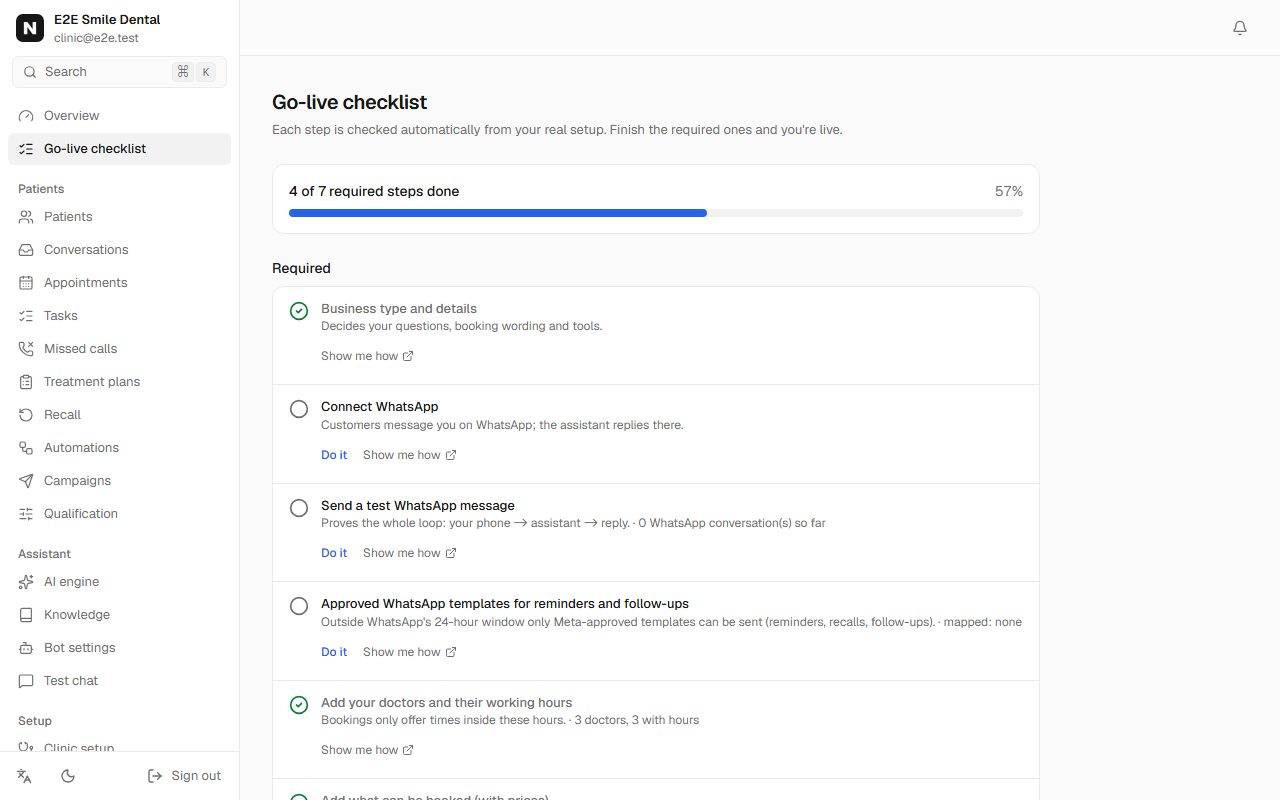
Go-live checklist showing 4 of 7 required steps done, with Connect WhatsApp and templates still open You should see: A progress bar with "X of Y required steps done". Required steps come first, recommended ones below.
-
Step 3: Add who can be booked, when, and for what
Add your doctors, agents or staff, their weekly working hours, and the services people can book (with a duration and, if you like, a price). The assistant only ever offers times inside these hours and never double-books anyone.
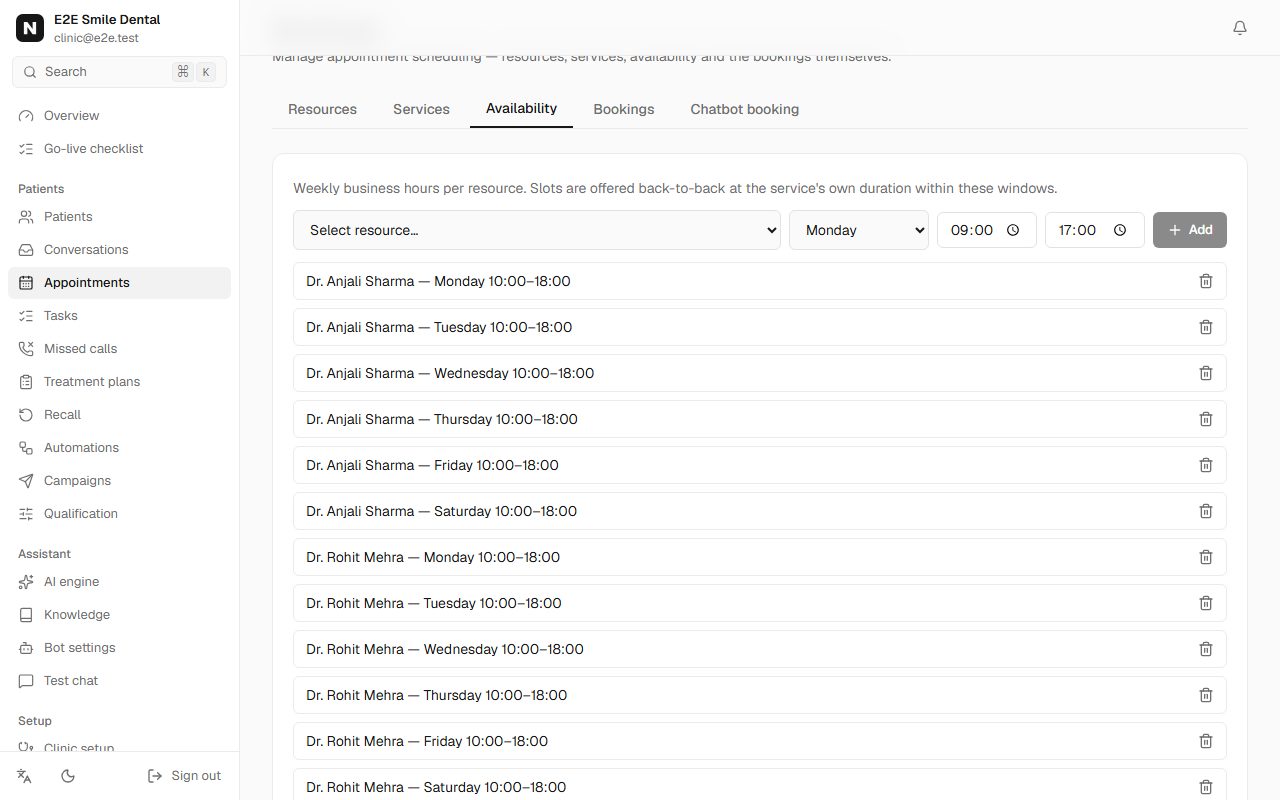
Availability tab listing each doctor's weekly hours, Monday to Saturday 10:00 to 18:00 You should see: The checklist ticks "Add your doctors/agents and their working hours" and "Add what can be booked".
-
Step 4: Connect WhatsApp and send yourself a test message
Click Connect WhatsApp in Connections. Meta's own window opens, you choose or create your WhatsApp Business account and verify your number, and you're done. Then message your business number from your personal phone.
- Full walkthrough, including Meta's free test number: see the WhatsApp guide.
- Reminders and follow-ups sent later than 24 hours after a customer's last message need Meta-approved templates - one click in Automations.
You should see: Your test message appears in Conversations and the assistant replies on your phone within seconds.
-
Step 5: Try the assistant before customers do
Open Test chat. It is the same assistant your customers get, with your real services, hours and knowledge. Ask what you expect customers to ask: prices, timings, "can I come tomorrow?".
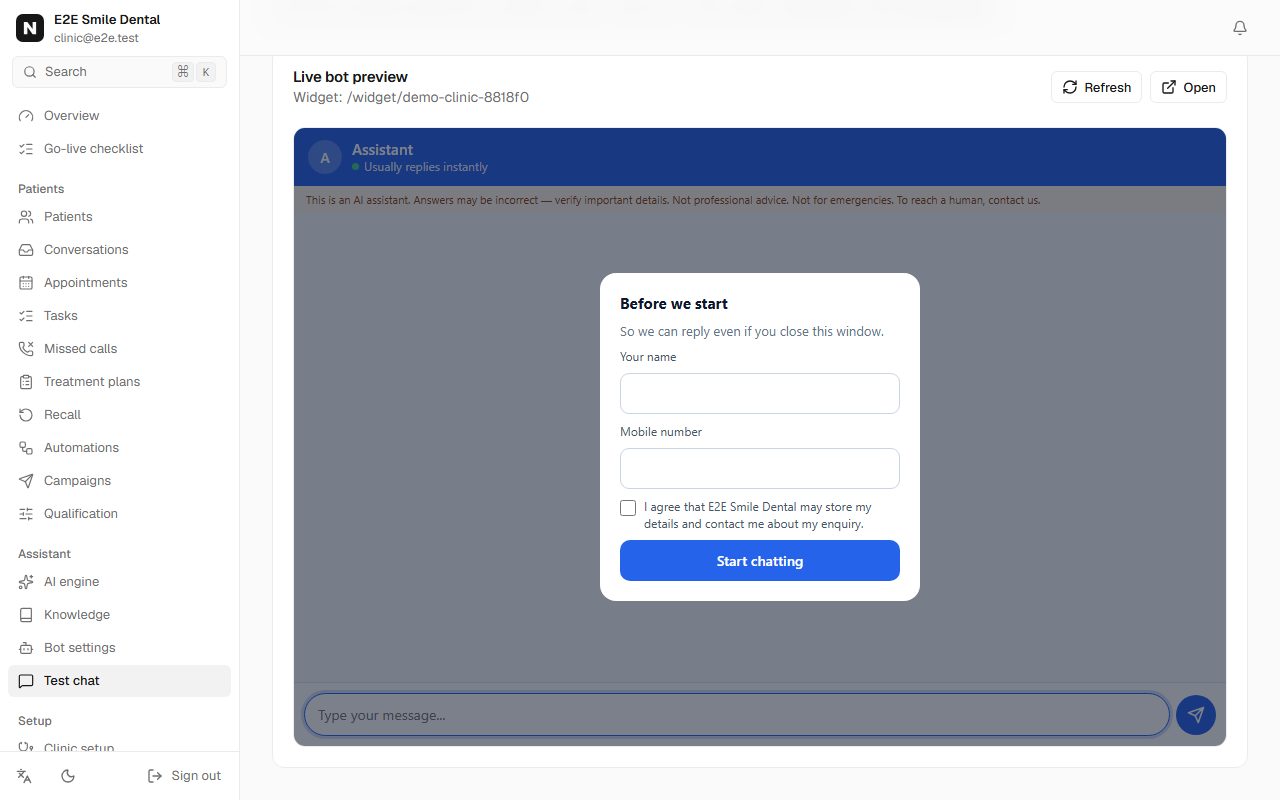
Test chat page with the live widget preview asking for name and phone before the chat starts -
Step 6: Invite your team
In Team, invite the front desk, doctors or agents. Each person gets their own login and only what their role allows; the owner keeps billing and settings.
Good to know: If we set up your workspace for you, sign in with the details we sent - the checklist shows what is already done.
Frequently asked questions
What happens after 15 days?
Your workspace and data stay, on the free plan: the website chatbot, knowledge base and leads keep working. WhatsApp replies, reminders and follow-ups pause until you choose a plan in Billing. Nothing is charged automatically, because no card was taken.
Can I change my business type later?
Ask us. The type drives your setup (questions, wording, screens), so we change it together rather than with a switch that could leave half-finished settings.
Do I need a website?
No. WhatsApp alone works. If you have a website you can add the chat with one line of code.